How to fix the DNS_PROBE_FINISHED_NXDOMAIN error
Jun 15, 2026
/
By Maisha R.
/
5 min Read
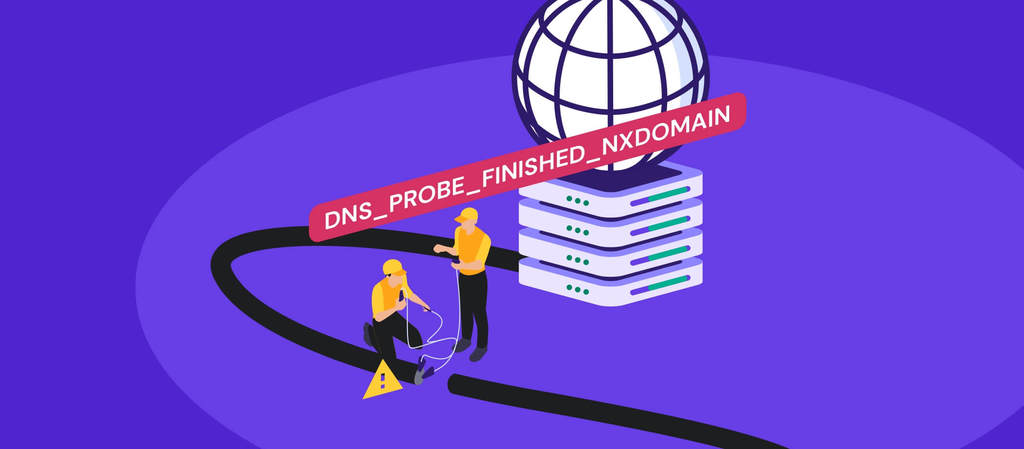
The DNS_PROBE_FINISHED_NXDOMAIN error appears when your browser can’t find a website’s IP address. In simple terms, the domain name isn’t resolving properly.
If you’re seeing this error, try these quick fixes first:
- Flush your DNS cache
- Restart your router
- Change your DNS server to Google (8.8.8.8) or Cloudflare (1.1.1.1)
- Double-check the website URL for typos
In most cases, one of these steps solves the problem within minutes.
Below, you’ll find detailed instructions for Windows, macOS, and Chrome, along with advanced fixes if the issue persists.
What Is DNS_PROBE_FINISHED_NXDOMAIN?
DNS_PROBE_FINISHED_NXDOMAIN error appears when the domain name system cannot resolve a website’s URL into an IP address, making the web browser unable to reach it. The NXDOMAIN in the error code implies that the domain is non-existent.
| Error code | DNS_PROBE_FINISHED_NXDOMAIN |
| Error type | DNS error |
| Error variations | This site can’t be reached (Google Chrome) Hmm. We’re having trouble finding that site. (Mozilla Firefox) Hmm… can’t reach this page (Microsoft Edge) Safari Can’t Find the Server (Safari) |
| Error causes | DNS misconfiguration DNS not yet propagated Internet connection error Firewall blocks Unresponsive server |
If you prefer a visual guide, here’s a video tutorial for solving the DNS_PROBE_FINISHED_NXDOMAIN error:


How to fix the DNS_PROBE_FINISHED_NXDOMAIN error
The DNS_PROBE_FINISHED_NXDOMAIN error can appear due to issues with the website, the client’s computer, or the internet connection. The solution will naturally depend on this root cause.
Let’s look at the 9 ways that cover all possible causes.
1. Flush the DNS cache
Your device stores DNS records locally. If those records are outdated, the browser may fail to resolve a domain.
Pro Tip
See our guide on how to flush DNS for detailed instructions, including information for Linux and older MacOS versions users.
Windows
To flush the DNS cache on Windows, follow this step-by-step tutorial:
- On the Start menu, search for the Command Prompt. Then, right-click to select the Run as administrator option.

- Once a new window appears, type in the commands below. Then, hit Enter.
ipconfig /flushdns

- Open the browser to see whether the DNS_PROBE_FINISHED_NXDOMAIN message still occurs.
macOS
- Open the Terminal application.
- Enter the following commands and press the Return key.
sudo dscacheutil -flushcache; sudo killall -HUP mDNSResponder
- Insert your password and press Return again.

- Open the browser and check if the error is still there.
Google Chrome
Google Chrome has a separate DNS cache from the operating system, so flushing it may fix the DNS_PROBE_FINISHED_NXDOMAIN Chrome error.
To do so, enter chrome://net-internals/#dns into the Chrome address bar. Then click Clear host cache.

Then, check if the DNS_PROBE_FINISHED_NXDOMAIN error is resolved.
2. Check whether the issue is on your device
Try accessing the website:
- From another device
- Using mobile data
- Through an online proxy
If it works elsewhere, the problem is likely on your local device or network.
If you’re unsure where the problem originates, follow our step-by-step guide to troubleshooting website issues to determine whether it’s a browser, network, or server issue.
3. Release and renew the IP address
Open Command Prompt as Administrator.
Run:
ipconfig /release
ipconfig /renew
Restart your computer.
4. Change the DNS servers
If your ISP’s DNS server isn’t responding properly, switching to a public DNS often resolves the issue.
You can use:
- Google DNS: 8.8.8.8 and 8.8.4.4
- Cloudflare DNS: 1.1.1.1 and 1.0.0.1
Windows
- Open Control Panel → Network and Internet → Network and Sharing Center.
- Click Change adapter settings.
- Right-click your connection → Properties.
- Select Internet Protocol Version 4 (TCP/IPv4) → Properties.
- Choose Use the following DNS server addresses and enter the new values.
Restart your browser afterward.
macOS
- Save changes and restart your browser.
- Go to System Settings → Network.
- Select your connection → Advanced → DNS.
- Add the new DNS servers.
Google Chrome
1. Enter chrome://settings/security on the address bar to access the Chrome DNS settings.
2. Scroll down to the Advanced section and select With Custom. Users can change it to one of the built-in DNS server addresses from Cloudflare, OpenDNS, CleanBrowsing, or Google.

5. Check your local hosts file
If the domain is blocked locally, your browser won’t be able to reach it.
Windows
Open:
C:\Windows\System32\drivers\etc\hosts
Remove any entries related to the affected domain.
macOS
Run:
sudo nano /private/etc/hosts
Delete any lines referencing the blocked website.
Save and restart your browser.
6. Disable VPN or antivirus temporarily
Some VPNs and security tools modify DNS behavior.
Temporarily disable them and check if the website loads. If it does, adjust your software settings accordingly.
Important! The steps to disable your antivirus program depend on the program itself. If you’re unsure how to do it, read the software’s knowledge base or contact the support team.
7. Restart your router
Network glitches can interrupt DNS resolution.
- Try loading the website again.
- Unplug your modem and router.
- Wait 30 seconds.
- Plug the modem back in.
- After one minute, plug in the router.
8. Restart the DNS client service (Windows only)
If DNS still isn’t resolving properly, restarting the DNS Client service may help.
1. Open Command Prompt as Administrator.
2. Run:
net stop dnscache
net start dnscache
3. Restart your computer and test the website again.
If the service cannot be stopped, it may already be running correctly. In that case, move on to the next solution.
You can also restart the DNS Client from the Windows Services panel if needed.
9. Reset Chrome Flags
If you’ve enabled experimental Chrome features, they may interfere with DNS resolution.
- Restart Chrome and test the website again.
- Enter
chrome://flagsin the address bar. - Click Reset all at the top of the page.
- Once done, close and reopen the browser.

10. Contact your internet provider
If nothing works, your ISP may be experiencing DNS issues. Contact them to confirm.
How to fix DNS_PROBE_FINISHED_NXDOMAIN if you own the website
If visitors are reporting the DNS_PROBE_FINISHED_NXDOMAIN error for your site, the issue is likely related to your domain or DNS configuration.
Start with these checks:
1. Make sure your domain hasn’t expired
If a domain expires, browsers can no longer resolve it.
You can:
- Log in to your domain registrar and check the expiration date
- Use an ICANN lookup tool to confirm the domain status
If the domain recently expired, renew it immediately. Some registrars offer a short grace period, but delays can lead to additional recovery fees.
2. Verify your nameservers
Your domain must point to the correct nameservers.
Check that:
- The nameservers match your hosting provider’s settings
- There are no outdated or custom entries pointing elsewhere
Incorrect nameservers can prevent DNS records from resolving properly.
Check out this guide if you want to verify a domain’s nameservers correctly.
3. Check your DNS records
The most important record is the A record, which connects your domain to your server’s IP address.
Make sure:
- The A record points to the correct IP
- There are no duplicate or conflicting records
- Recent DNS changes have fully propagated
If you recently updated DNS settings, allow up to 24–48 hours for propagation.
4. Temporarily disable your CDN
If you use a CDN like Cloudflare, incorrect configuration can interrupt DNS resolution.
Try:
- Temporarily pausing the CDN
- Checking whether the domain resolves directly from the origin server
If the site works without the CDN, review your DNS and proxy settings.
5. Confirm your hosting server is active
If your server is offline or suspended, DNS may fail to resolve correctly.
Check your hosting dashboard for:
- Server status
- Account suspension notices
- IP address changes
Conclusion
DNS_PROBE_FINISHED_NXDOMAIN means the browser can’t resolve a domain name into an IP address. In most cases, the issue is local and can be fixed by flushing DNS, restarting your router, or switching DNS servers.
If you manage the website, review your domain and DNS configuration to ensure everything points correctly.
Do you know other methods to fix DNS_PROBE_FINISHED_NXDOMAIN? Leave a comment down below.
All of the tutorial content on this website is subject to Hostinger's rigorous editorial standards and values.

Maisha is a proponent of high-quality, actionable content. When she's not writing for Hostinger Tutorials and Blog, she immerses herself in the English thesaurus. Her love for personal development essays drives her to help her fellow writers succeed in the world of content marketing.