Hostinger CDN is working when responses from your website carry the x-hcdn-request-id header and static files return x-hcdn-cache-status: HIT on repeat requests. The Content Delivery Network (CDN) speeds up delivery of static files, secures connections closer to visitors, and optimizes images; it does not make your website’s own code run faster, so the improvement depends on what your pages are made of.
How to check that Hostinger CDN is active
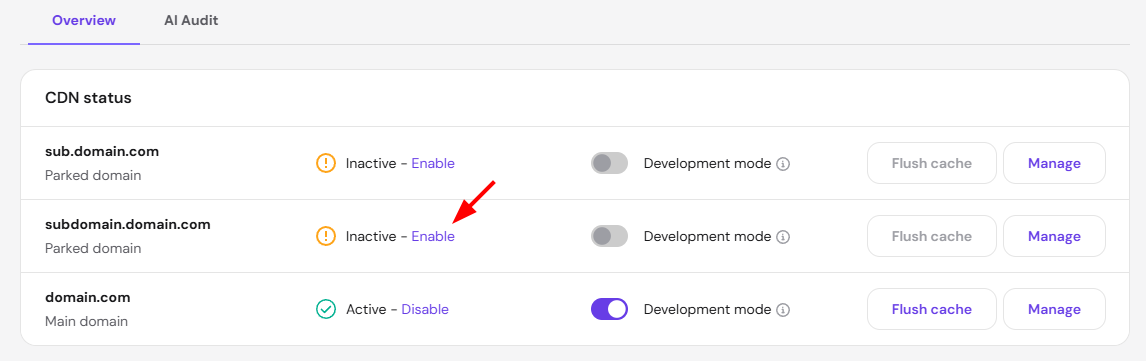
- Go to Hostinger dashboard → Websites → Dashboard → Performance → CDN and confirm the status shows the CDN as enabled.
- Open your website in a browser, open the developer tools (F12), and select the Network tab.
- Reload the page and click the first request in the list.
- Look for
x-hcdn-request-idin Response Headers. When it is present, the request was delivered through Hostinger CDN. - Click an image or CSS (Cascading Style Sheets) file in the list and check
x-hcdn-cache-status. The first request after a change shows MISS; reload, and the file shows HIT, which means it was served from the CDN edge.
The Analytics tab of the CDN dashboard (click Manage) shows the same information for all visitors: the share of cache hits, misses, and dynamic requests, the distribution of status codes, and the request volume over the selected period.
NOTES
- If
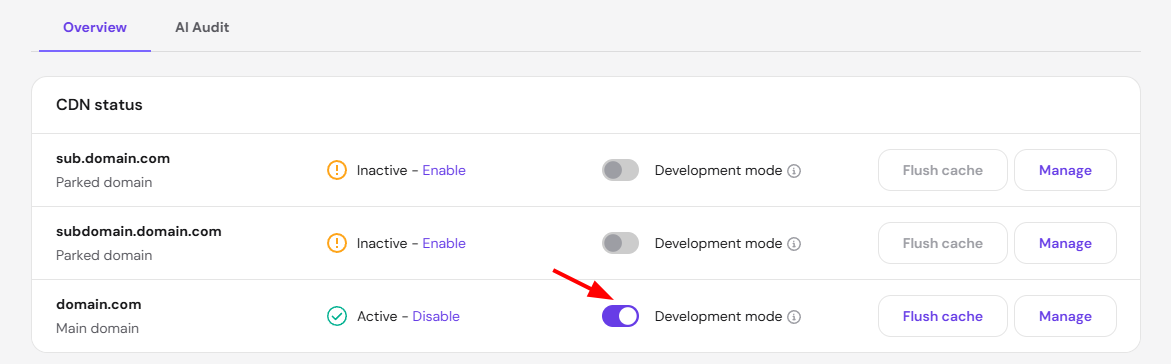
x-hcdn-request-idis missing, the request did not go through Hostinger CDN. Common reasons are DNS (Domain Name System) changes still propagating after enabling the CDN, a domain that does not use Hostinger nameservers, or another proxy service such as Cloudflare in front of the website. See Hostinger CDN and your DNS records. - Development mode makes every request show BYPASS. Disable it when you are not editing the website.
What Hostinger CDN speeds up
- Static files — images, CSS, JavaScript, fonts, and downloads — are cached on CDN servers around the world and served from the location closest to each visitor, instead of from your hosting server on every request.
- Connection setup is faster because visitors connect to a nearby CDN server over TLS 1.3 and, for websites on their own domain, HTTP/3, so the encrypted connection is established faster, especially for visitors far from your hosting server.
- Images are optimized through WebP conversion and smart image optimization, which reduce image size for desktop and mobile devices (see Hostinger CDN: How to optimize your website).
- Compression delivers text files with the most efficient algorithm the visitor’s browser supports.
- Peaks and attacks are absorbed by cached content and security filtering, keeping unwanted traffic away from your hosting server so it has more capacity for real visitors.
What Hostinger CDN cannot speed up
- The HTML of most WordPress and PHP websites is generated by your hosting server for every request and is not stored on the CDN, unless your caching plugin marks pages as publicly cacheable (see How Hostinger CDN caching works).
- The time to first byte (TTFB) of such pages is mostly the time your website takes to run its code and database queries — slow plugins, heavy themes, or unoptimized databases stay slow behind any CDN. Pages that require login, carts, and checkouts are always fetched from your server.
Speed tools such as PageSpeed Insights or Lighthouse measure the whole page. A score that does not move after enabling the CDN usually means the page is dominated by server processing time or by render-blocking scripts rather than by file delivery.
How to measure the difference fairly
- Test the same page several times: the first request after enabling the CDN or flushing the cache fills the cache (MISS); later requests show the real result.
- Use an incognito window or a testing tool located in another region — visitors far from your hosting server see the largest gain.
- Compare the time to first byte of an image or CSS file (delivered by the CDN) with the HTML document (generated by your server) to see which part of the page needs work.
- Check that Development mode is disabled and that no second CDN or proxy is active for the domain.
When the website seems slower with Hostinger CDN
Check four settings when a page loads slower than before: Development mode is enabled, the Under Attack mode or a high security level is challenging visitors (see Hostinger CDN: The browser verification page), another proxy service is active in front of Hostinger CDN, or the page is fetched from your server on every request because of its cache headers. Follow Hostinger CDN: Troubleshooting website errors to isolate the cause and collect an x-hcdn-request-id value for support if the slowdown persists with all four ruled out.
With the CDN confirmed active and expectations matched to what it caches, optimization work can focus where it matters — on the pages your server generates.