You can renew your hosting plan at any time while it’s active. You have two alternative ways to reach the renewal options:
Option 1 — From the Billing section
In Hostinger dashboard, go to Billing → Subscriptions and click on Renew next to the service in question:
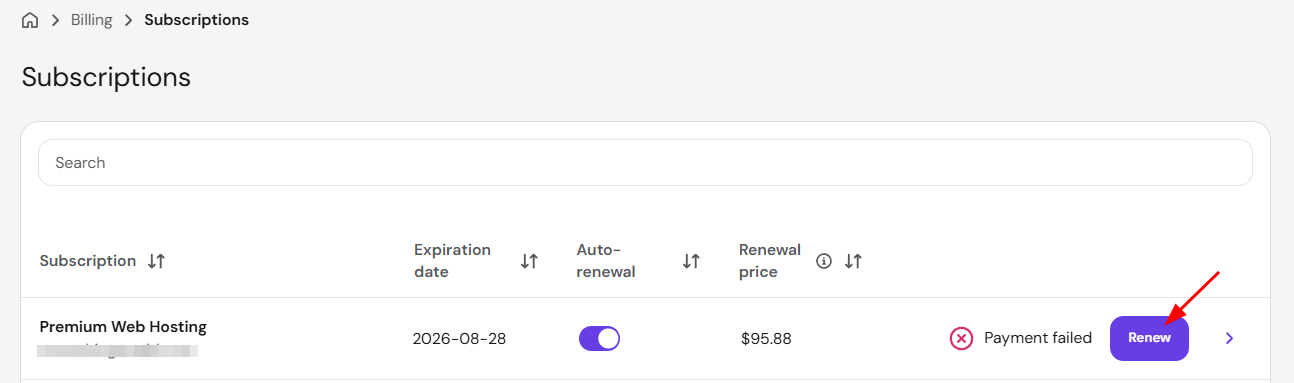
And proceed with the payment.
Option 2 — From the Websites section
In Hostinger dashboard, go to the Websites section. Click on Dashboard next to the website in question, and search for Renew in the left sidebar:
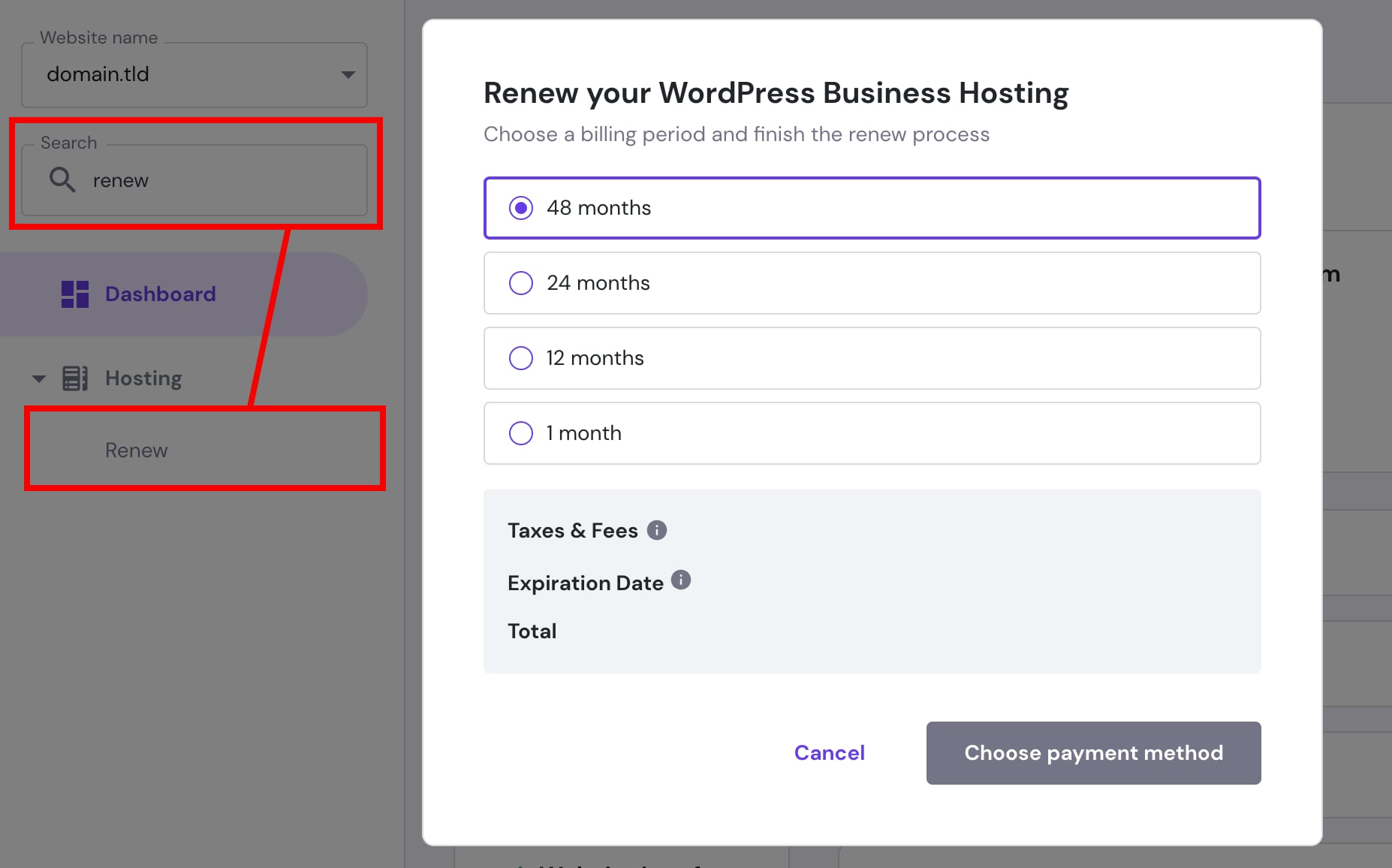
And proceed with the payment.
If your hosting plan expired and is canceled, follow this guide: How to restore an expired hosting plan.
How to find the renewal price
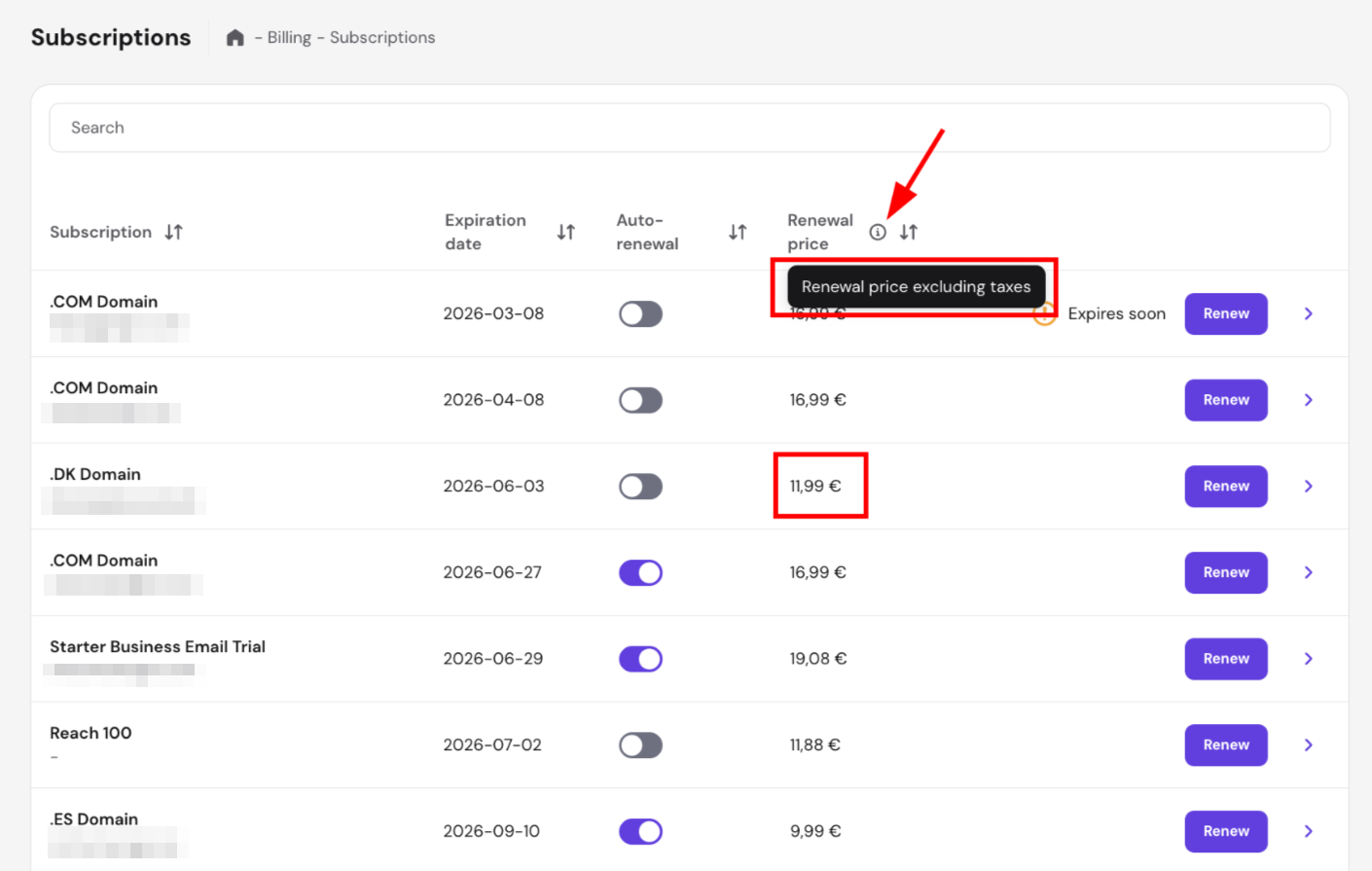
To check the renewal price of your hosting plan, go to Billing → Subscriptions. The renewal price (excluding taxes) is displayed directly in the Renewal price column — no additional steps needed.
Keeping auto-renewal enabled is recommended, because it renews your hosting plan before it expires and helps prevent website and email downtime. Auto-renewal is optional. You can disable it at any time in Billing → Subscriptions, and your plan stays active until its expiration date. To turn it on, see How to automatically renew Hostinger services. To turn it off, see How to disable auto-renewal for Hostinger services.