Express checkout is a fast and convenient way for your customers to pay using methods they already trust — like Apple Pay, Google Pay, PayPal, Klarna, Link and Amazon Pay — directly on your product pages and shopping cart.
With Stripe express checkout in your store, shoppers can complete their purchase in just a few clicks — skipping steps like entering their shipping or billing details every time. This brings several benefits:
✅ Faster purchases = fewer drop-offs
✅ Trusted payment methods such as Apple Pay, Google Pay, more
✅ Mobile-optimized checkout, perfect for buyers on the go
✅ Higher conversion rates
✅ Professional & modern feel for your store
How to enable the Stripe express checkout
To enable Stripe express checkout, simply add Stripe as one of your payment gateways. Follow these instructions to set up Stripe for your store.
When you enable Express checkout, your domain is automatically submitted to Stripe — no manual steps in Stripe needed.
Once enabled, you can toggle Apple Pay on or off directly from your admin panel without leaving it or opening Stripe.
Where Stripe express checkout is available
Stripe express checkout will be available in key areas designed to speed up the purchase experience:
- Product pages
- Cart (sidebar)
- Checkout page
Express Checkout buttons (Apple Pay, Google Pay, Link, and other wallet methods) appear automatically on all three locations once Stripe is connected and Express Checkout is enabled. No additional configuration is needed per location.
Stripe express checkout display
-
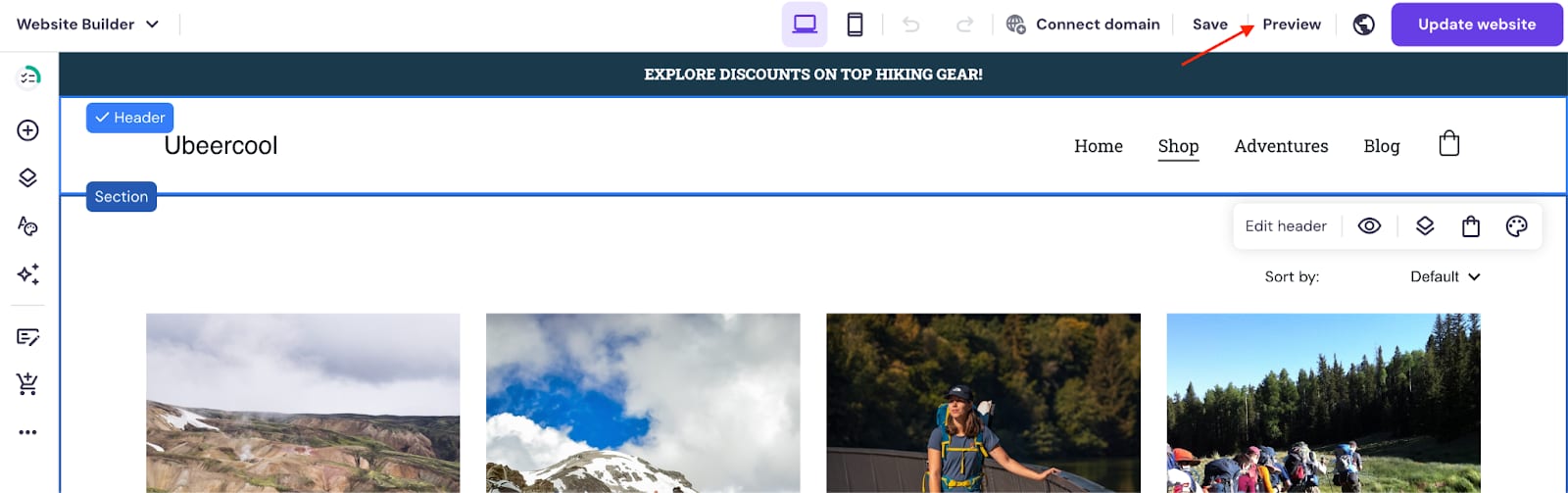
Access your site preview mode to see how express checkout buttons look on your product pages and shopping cart.
-
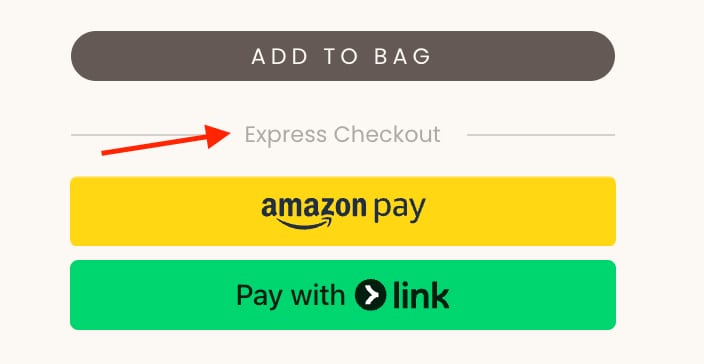
You can edit the text that appears above the express checkout buttons.
-
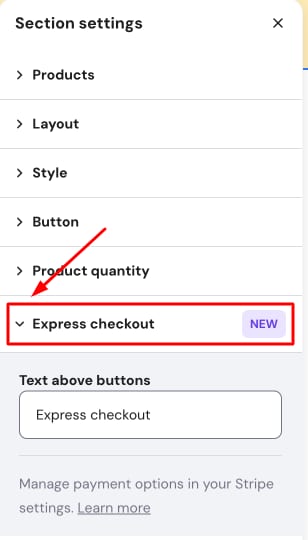
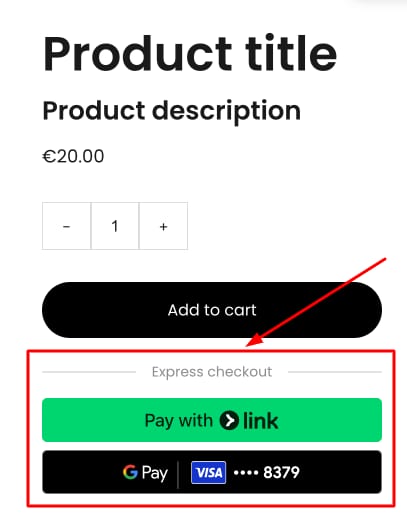
Enter the product page and in the product Section settings, and find Express checkout. If you update the Text above buttons field, it will change the message shown above the Express Checkout buttons in the product section.
Troubleshooting Express Checkout
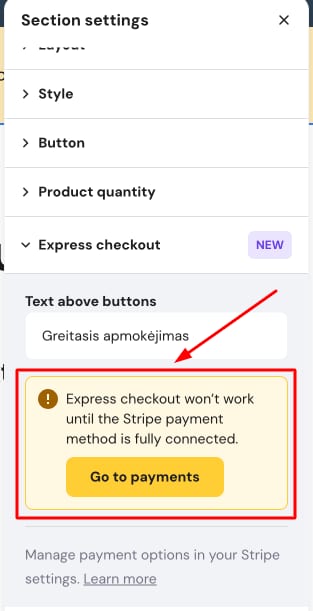
If a yellow message appears, it means:
-
Your Stripe account is not fully connected;
-
Or the publishable key is incorrect;
-
Or Express Checkout is not enabled in the editor.
Please check all these steps to make sure your express checkout works properly.
Have in mind that the express checkout is only available for specific supported browsers – you can find all details here 💡